
Multi-store configuration
The Scalapay extension relies on Magento's native configuration scopes. You can define every setting globally and, when needed, override it for a single website or store view.
Where to find the settings
| Section | Path in the Magento Admin | What it contains |
|---|---|---|
| Payment method | Stores → Settings → Configuration → Sales → Payment Methods → Scalapay | Enable/disable, Test/Live mode, merchant token, API key, min/max amount, country/category restrictions, order statuses |
| Widget | Stores → Settings → Configuration → Sales → Scalapay Widget | Widget placement on product, cart and checkout pages |
Both sections use the same scope mechanism described below.
1. The scope switcher
The Scope selector at the top-left of the Configuration page drives the multi-store behaviour. It follows Magento's hierarchy:
| Scope | Example | Behaviour |
|---|---|---|
| Default Config | — | Global values. They apply to every website and store view that does not define its own override. |
| Website | Main Website | Overrides Default Config and is inherited by the store views under that website. |
| Store view | Default Store View | The most specific scope. Overrides both the website and Default Config. |
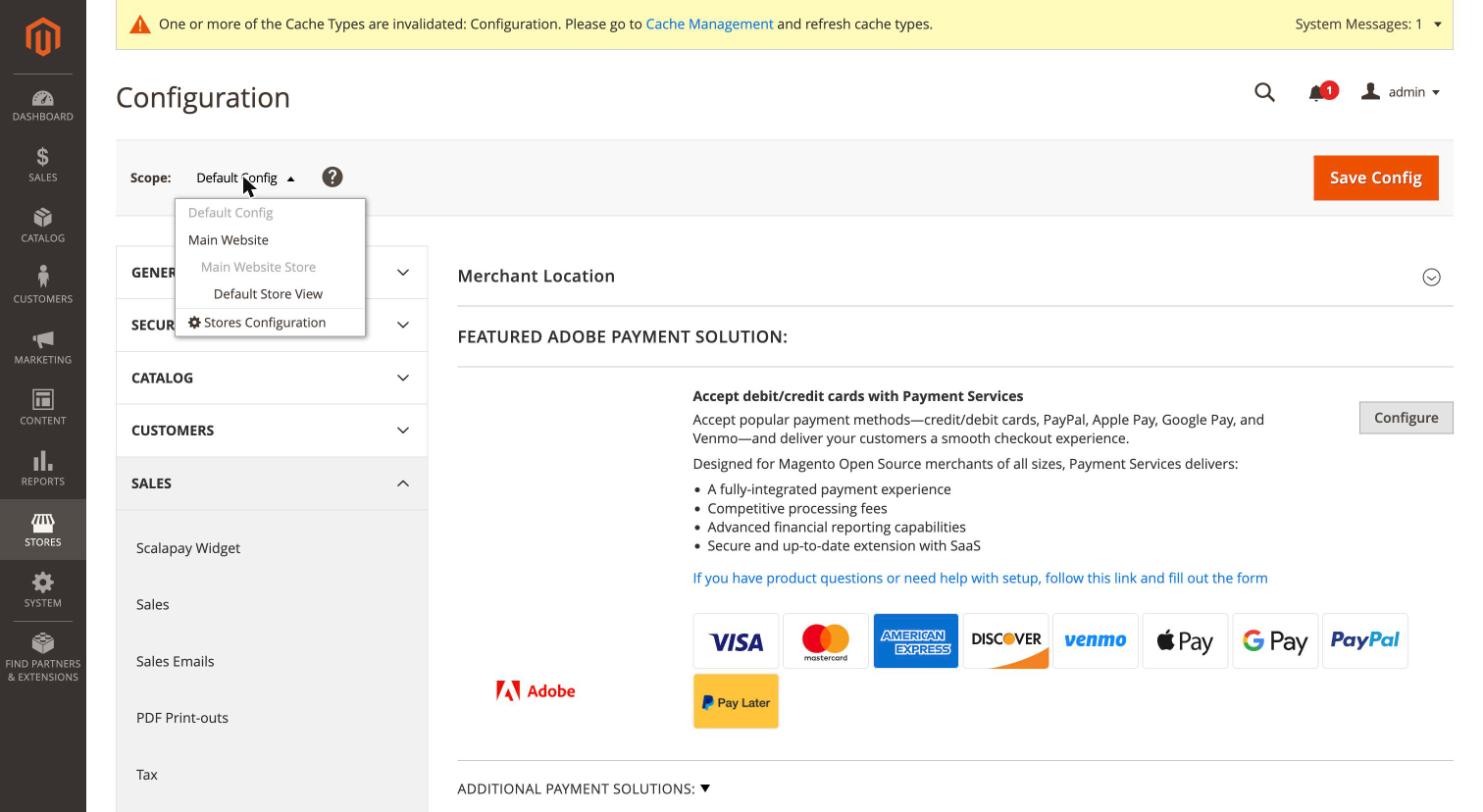
Switching scopeWhen you switch scope, Magento asks you to confirm ("All data that hasn't been saved will be lost"). Save before switching if you have pending changes.
2. Field scope labels
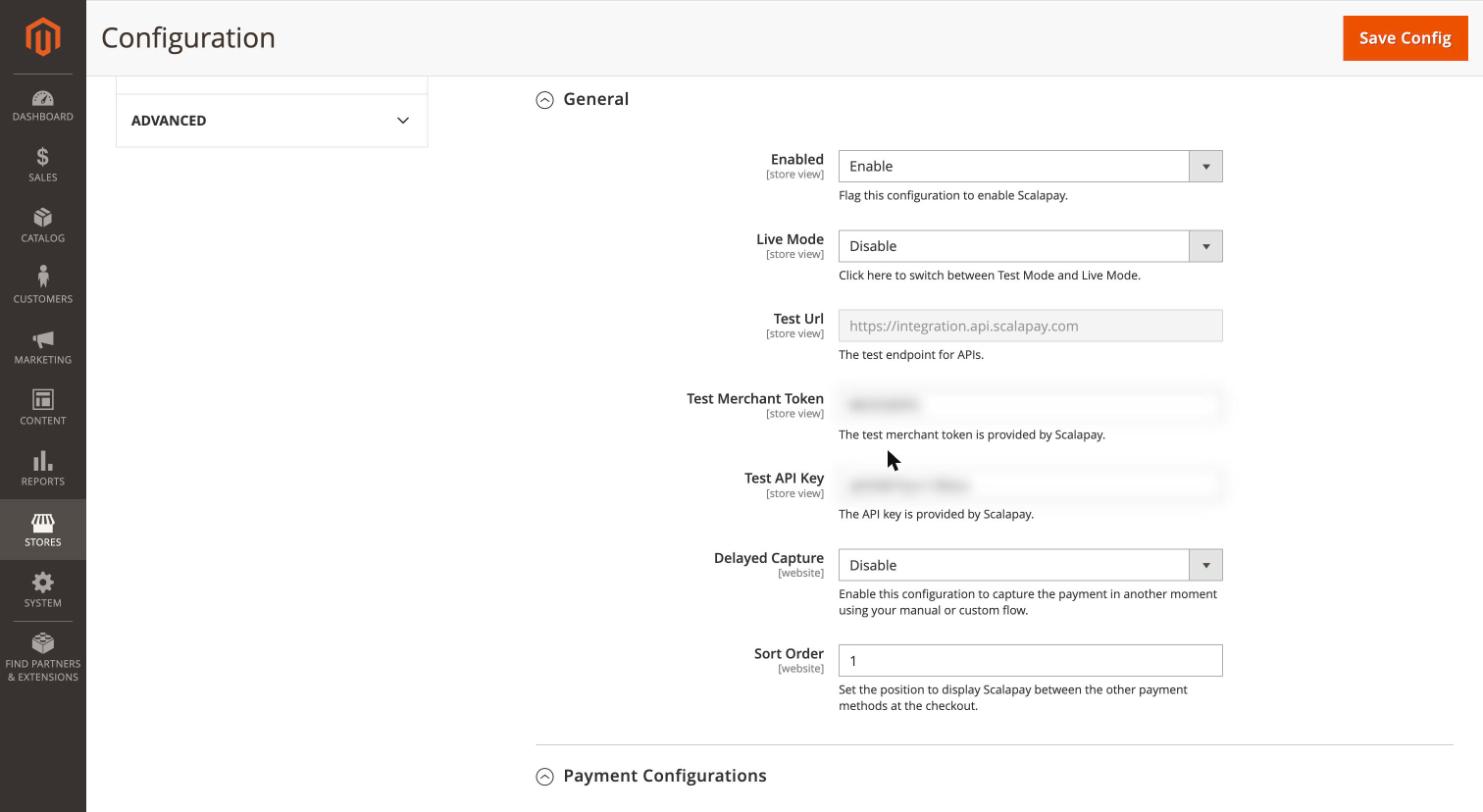
Under each field label, Magento shows the maximum scope at which that field can be set:
| Label | Where it can be set | Examples |
|---|---|---|
[store view] | Per website and per store view | Enabled, Live Mode, Test/Live Url, Merchant Token, API Key, Min/Max Amount |
[website] | Per website only | Delayed Capture, Sort Order |
| (no label) | Global only, under Default Config | — |
3. Inheritance: the "Use Default" / "Use Website" checkbox
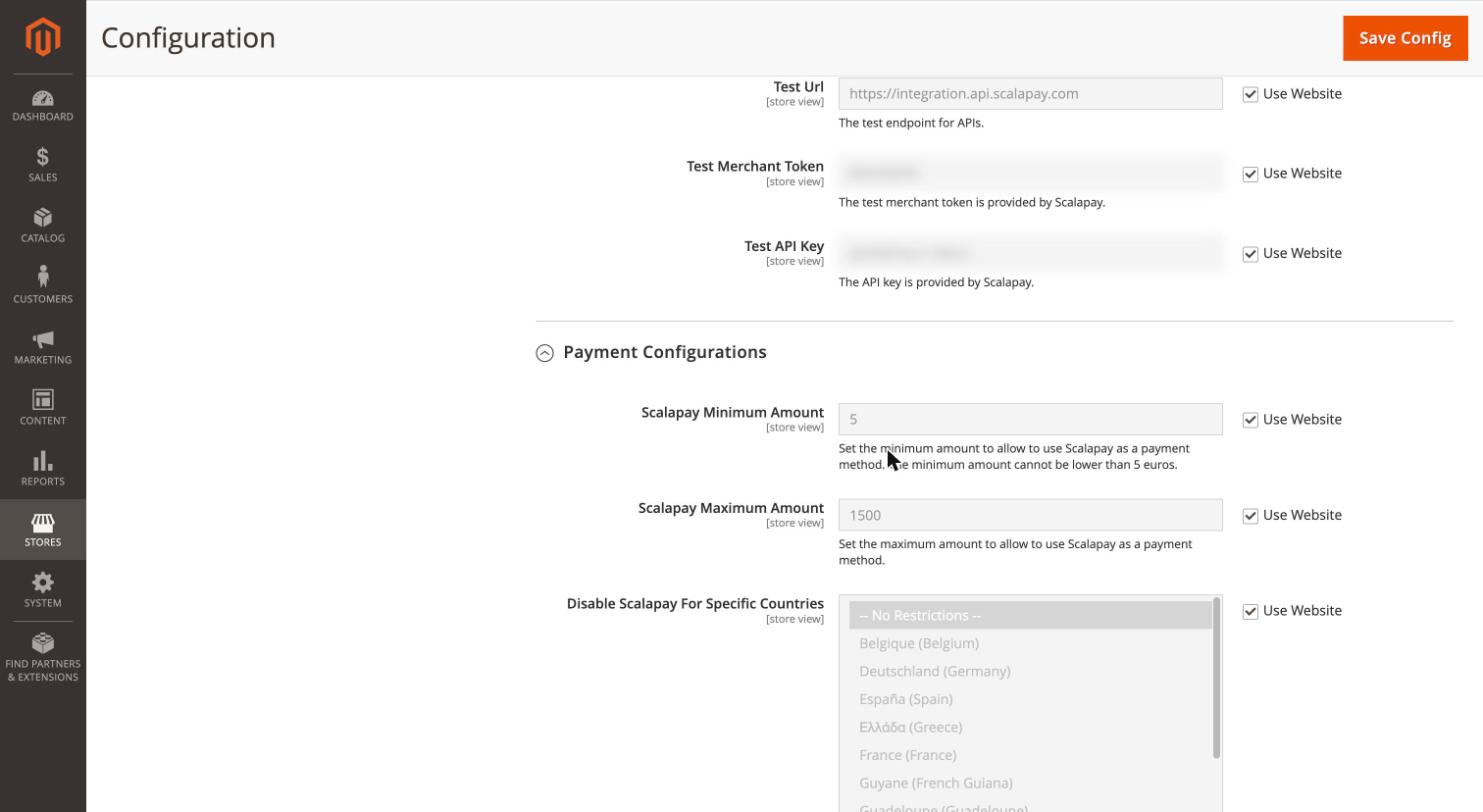
When a non-default scope is selected, each overridable field shows a checkbox on the right:
- Use Default when a website is selected.
- Use Website when a store view is selected.
When the checkbox is checked, the field is greyed out and inherits the value from the parent scope.
4. Overriding a single website or store view
To set a different value on a single scope:
- Select the website or store view from the Scope switcher and confirm the switch.
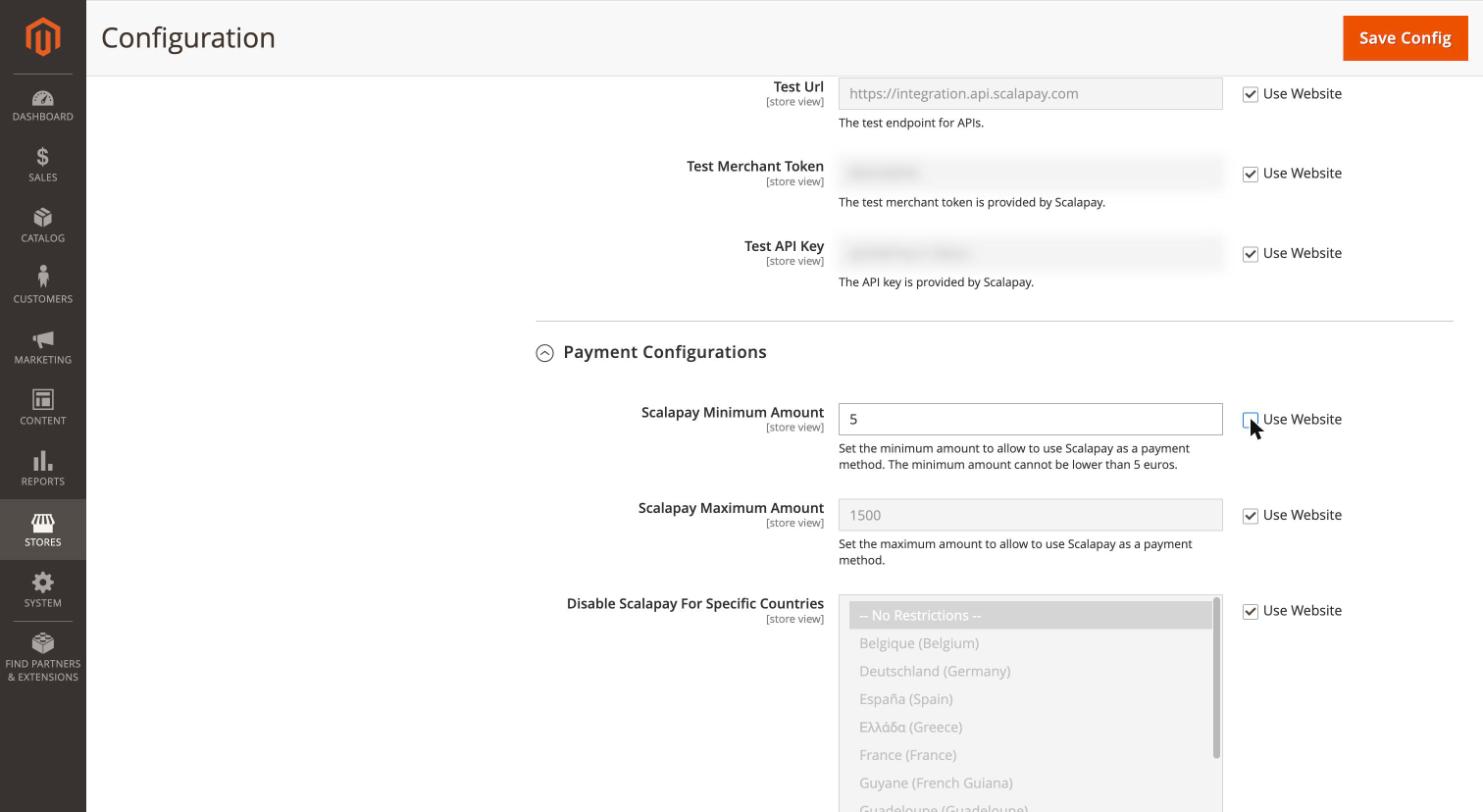
- Uncheck the Use Website / Use Default checkbox next to the field. The field becomes editable.
- Enter the scope-specific value (for example, a different API key, a different Test/Live mode, or enable/disable Scalapay on that store view).
- Click Save Config. The save applies to the currently selected scope.
To restore inheritance, recheck the checkbox; the field will grey out again and revert to the parent value.
Typical multi-store exampleA single merchant running several websites or store views (for example IT and DE, or B2C and B2B) can keep the common parameters at Default Config and override only the API key / merchant token per website or store view (one per contract), leaving Mode, min/max amount, widget settings, etc. inherited.
Check the active scope before savingEvery save acts on the scope selected in the Scope switcher. Always check which scope is active before pressing Save Config, so you don't write an override on the wrong scope or accidentally change the global configuration.
After saving, you may need to flush the Magento cache (System → Cache Management) for the change to take effect.
Updated about 5 hours ago